How to load Scooby in CS2
Counter-Strike 2 · Scooby Wiki
Load Scooby in CS2
Use the Load button
- Complete the requirements, open Scooby, and sign in.
- Select Counter-Strike 2 in Games.
- Choose Load. If your Start game setting is enabled, let the loader start CS2; otherwise start it yourself and wait at the main menu.
- Read any prompt to close or restart an already-running game before confirming. Wait for preparation and loading to finish.
- Return to CS2 and press F1 or Insert by default. Use your saved menu key if you changed it.
To change layouts after loading, open Settings > Interface > UI version and select V1 or V2.
Manual loading in versions that offer it
Start CS2 yourself and remain at the main menu before choosing the manual injection option. Do not start a match while the loader is still preparing.
Follow the loader from start to finish
Real native-loader interface captures with example states. The red outlines mark controls or status messages. Your access, edition and game status may differ. Select a picture to enlarge it.
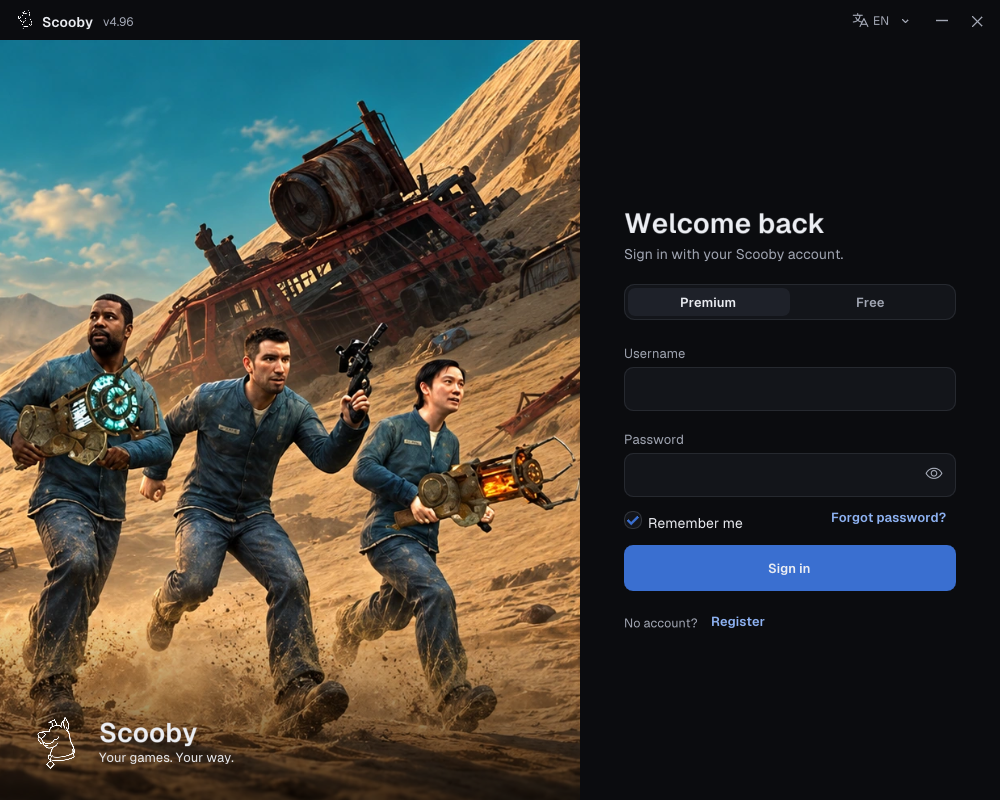
1. Sign in — choose your access type
Use one of these two login methods.
Premium — use your Scooby account
- Choose Premium.
- Enter the username and password of the Scooby account you created.
- Choose Sign in. A purchased license key is redeemed on the portal; it is not your loader password.
New purchase? Redeem your Premium license key first →
 Enlarge screenshot ↗
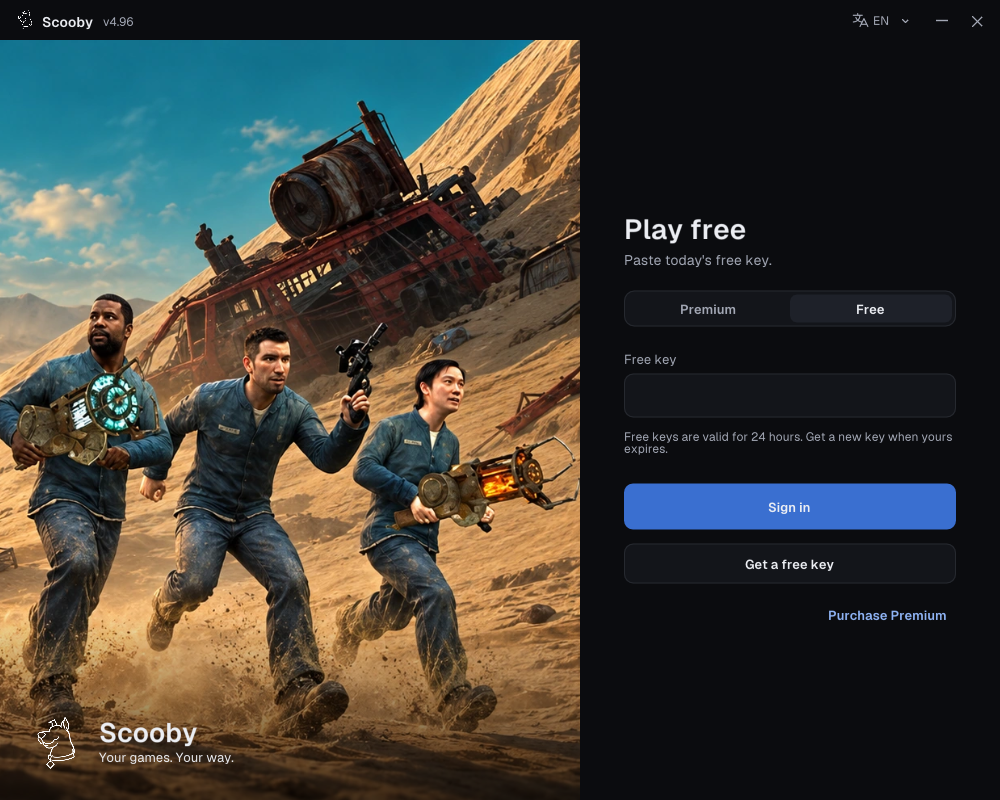
Free — paste a free key
- Complete the free-key access steps and copy your key.
- In the loader, choose Free and paste it into Free key.
- Choose Sign in.
Free keys work only in the loader’s Free login. They cannot sign in to the portal/dashboard or be redeemed there as a Premium license.
One free key supports all Scooby Free versions. Free keys reset every 24 hours, so you need to get a new free key every 24 hours. Complete the access steps again, copy the new key and use it in the loader’s Free tab. You do not need a separate key for each game.
 Enlarge screenshot ↗
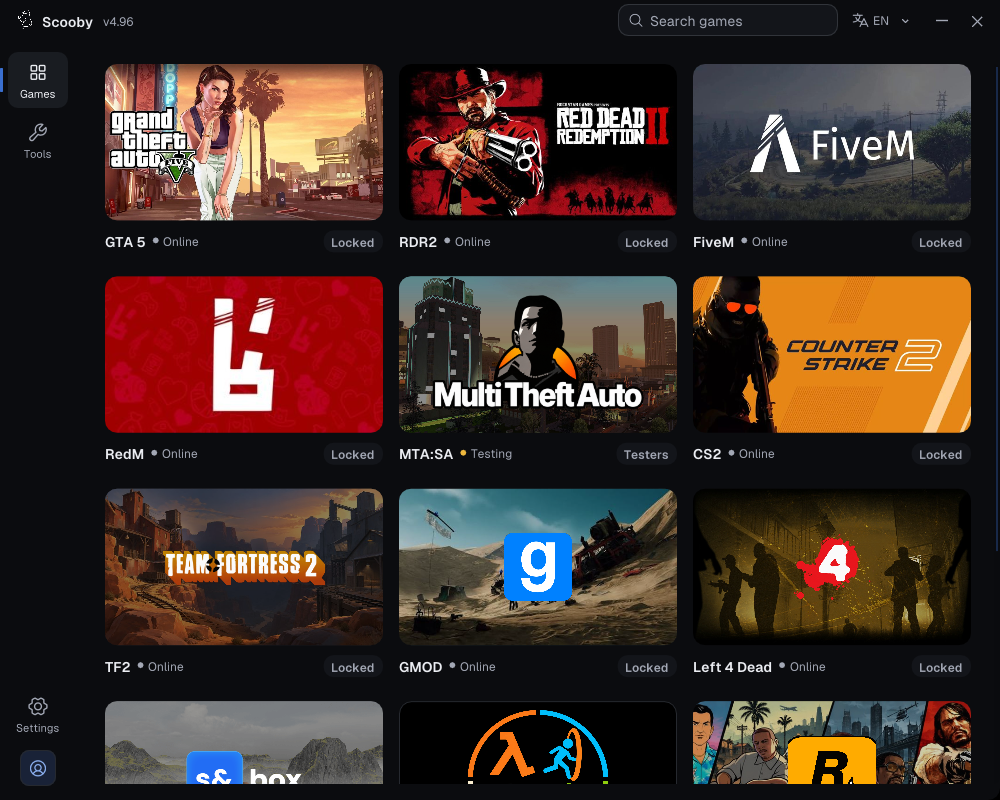
2. Choose your game
Open Games, then select Counter-Strike 2.
 Enlarge screenshot ↗
Check that the dashboard name matches your game before continuing.
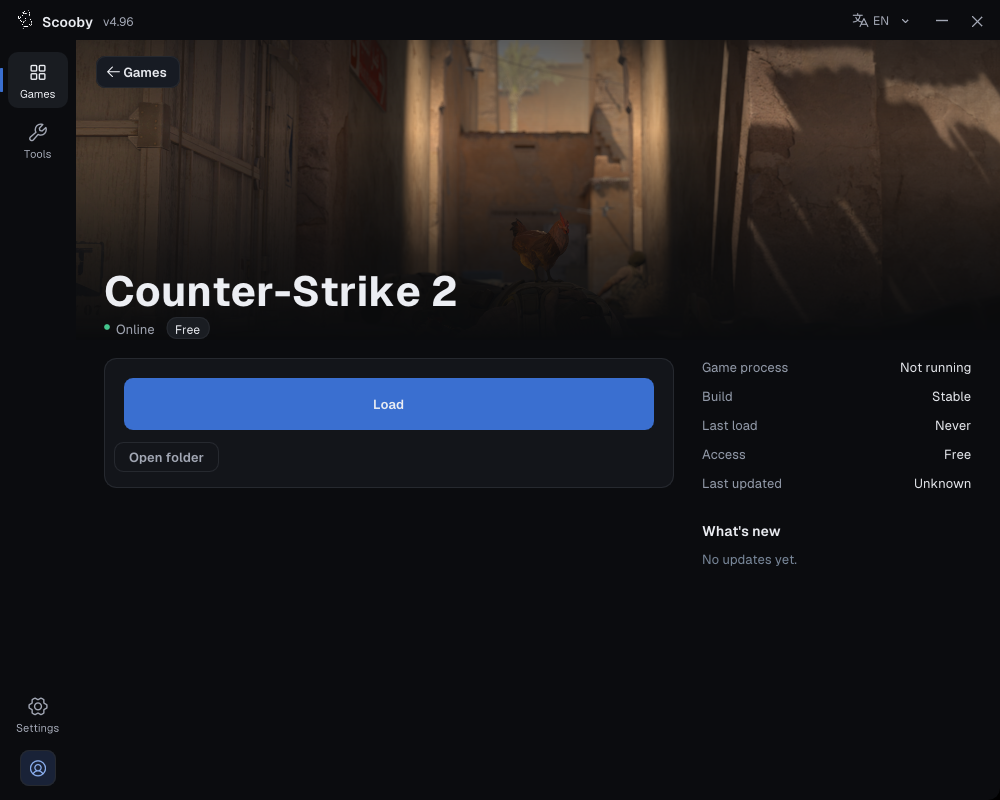
3. Check the edition, then Load
Follow the game-specific preparation steps above, check Edition if shown, and press Load once.
 Enlarge loader screenshot ↗
4. Wait for loading to finish
Keep the loader open while it prepares files and loads the module. A download percentage or “Preparing assets” message is still in progress; wait for the completion message.
Show the loading screen
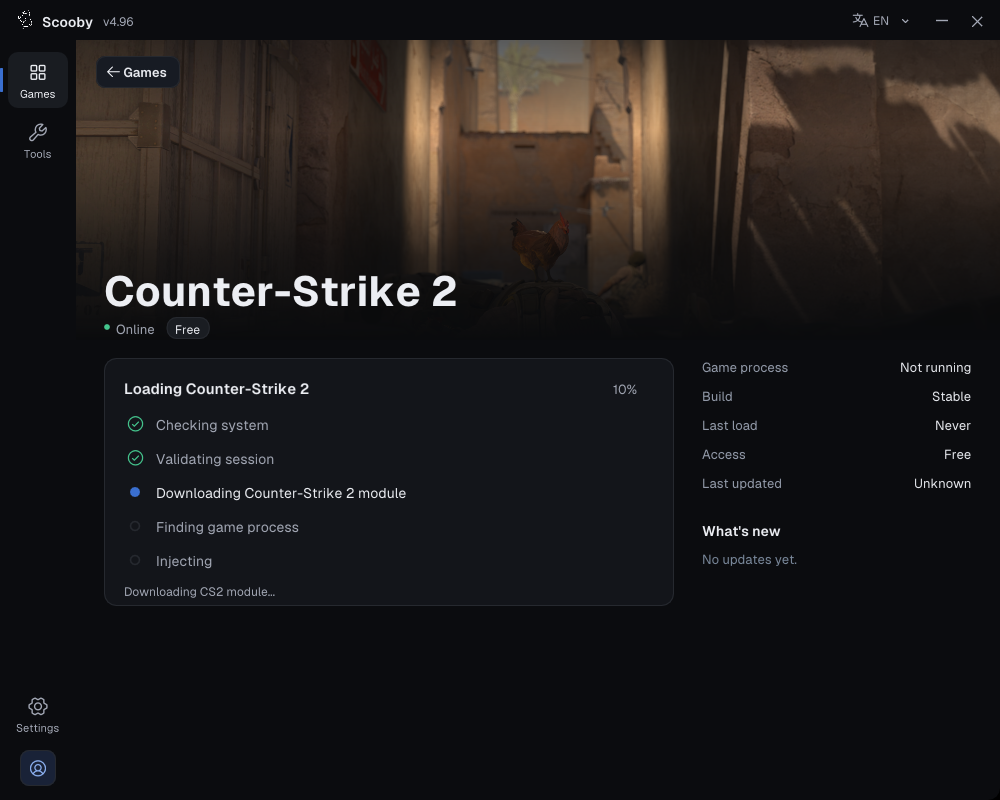 Enlarge screenshot ↗
5. Check completion, then return to the game
Completion messages vary by game. The labeled example below shows how a finished module load differs from a progress panel.
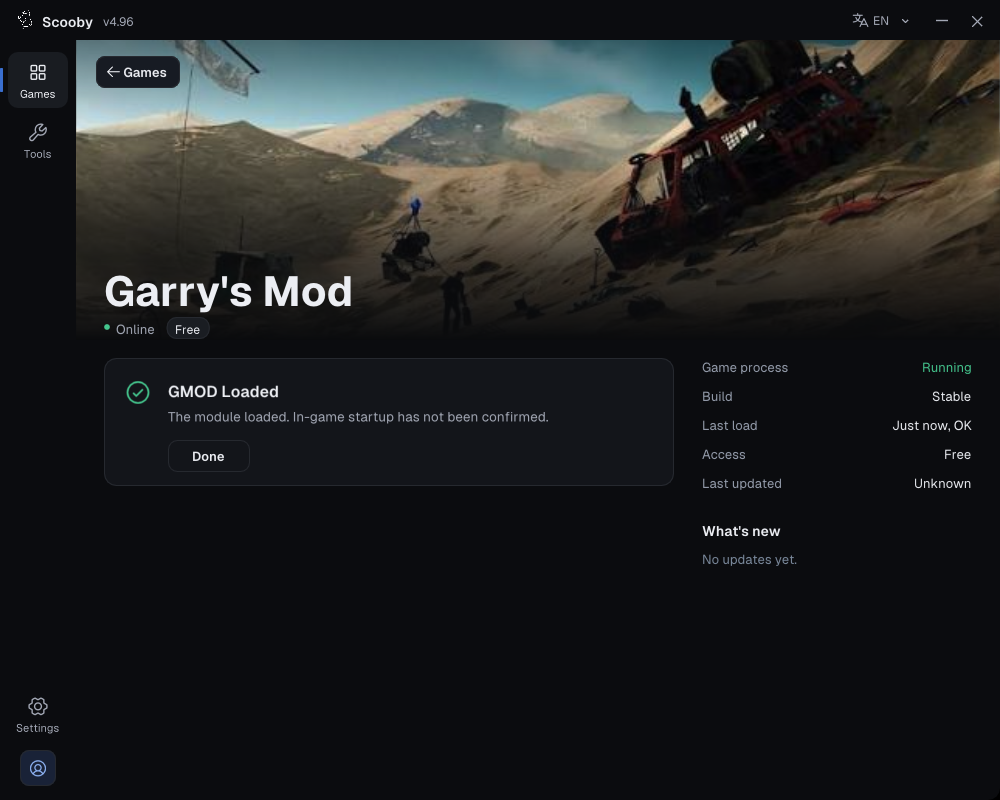 Enlarge screenshot ↗
If the menu does not open, check your configured menu key and the troubleshooting section for your game. Keep the exact error or status message.