How to load Scooby in RedM
Sign in, choose RedM, and load at the right point in the game.
Load Scooby in RedM
Load in this order
- Complete the requirements, open the current Scooby loader, and sign in with your account or valid free key.
- Open Games and select RedM.
- Launch RedM and wait at its main menu, or join a server and wait while its resources / assets are loading.
- Return to the loader and choose Load. Older loader versions may label this Inject. Press it once, then wait for the displayed preparation and loading steps to finish.
- Return to the game after the loader reports completion. Open Scooby using your configured menu key.
Already in a server?
Loading in-game is supported, but the main menu or resource-loading screen is the recommended point. If an attempt fails, close both apps and retry once from that point.
Follow the loader from start to finish
Real native-loader interface captures with example states. The red outlines mark controls or status messages. Your access, edition and game status may differ. Select a picture to enlarge it.
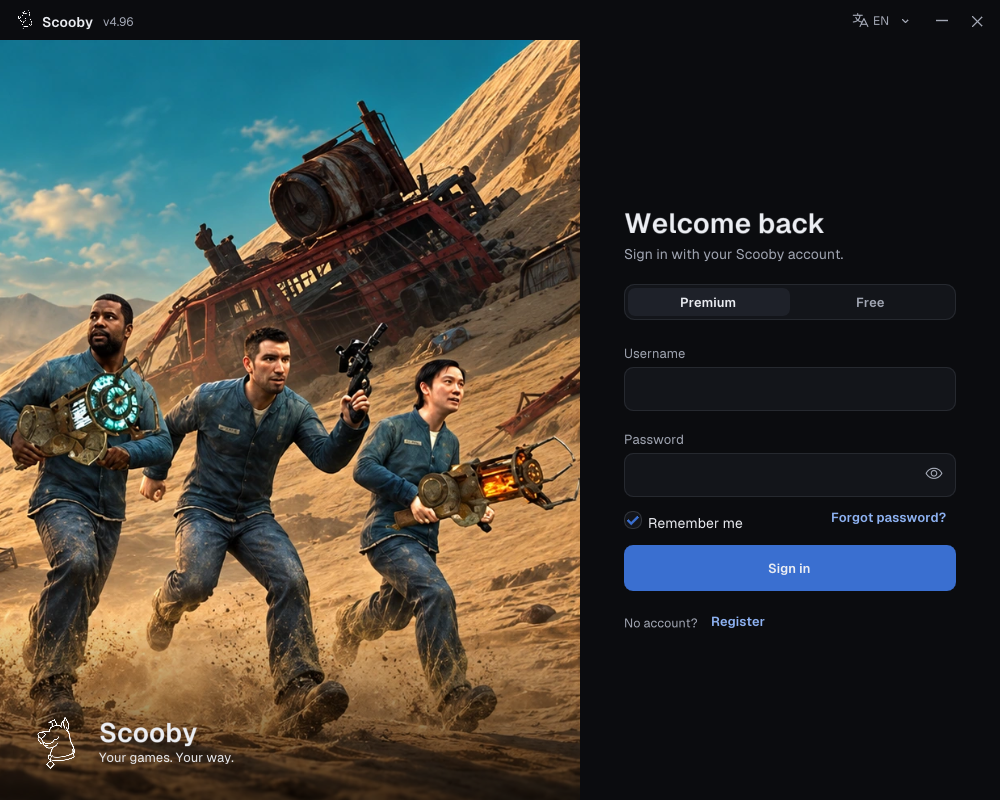
1. Sign in — choose your access type
Use one of these two login methods.
Premium — use your Scooby account
- Choose Premium.
- Enter the username and password of the Scooby account you created.
- Choose Sign in. A purchased license key is redeemed on the portal; it is not your loader password.
New purchase? Redeem your Premium license key first →
 Enlarge screenshot ↗
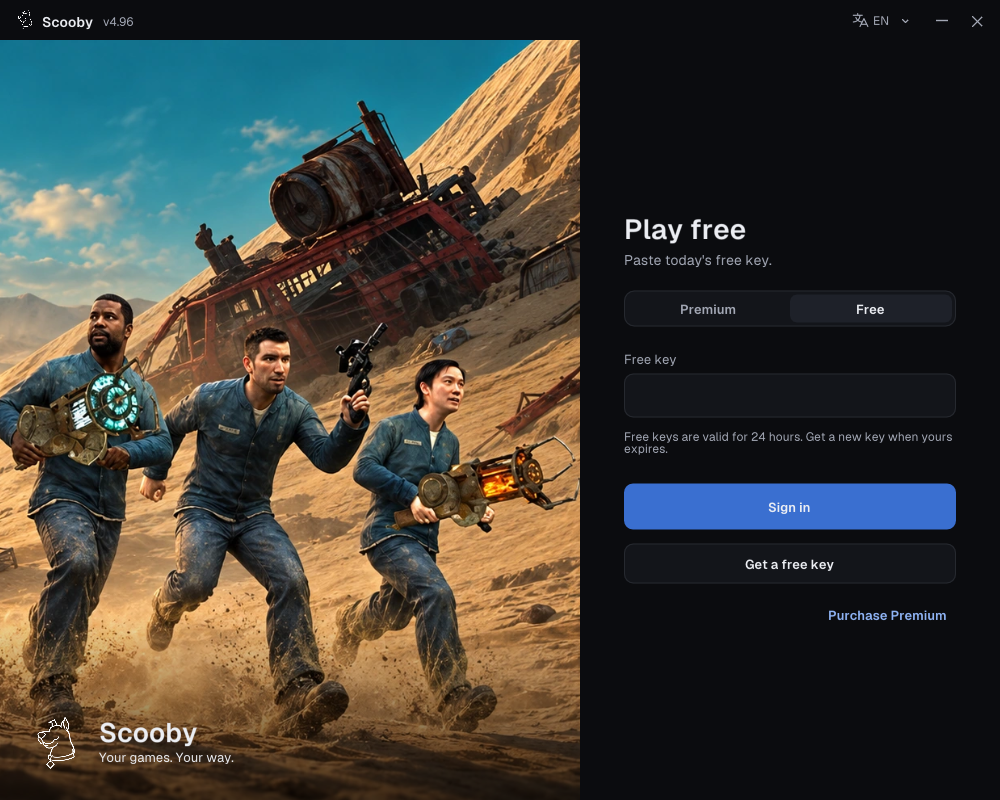
Free — paste a free key
- Complete the free-key access steps and copy your key.
- In the loader, choose Free and paste it into Free key.
- Choose Sign in.
Free keys work only in the loader’s Free login. They cannot sign in to the portal/dashboard or be redeemed there as a Premium license.
One free key supports all Scooby Free versions. Free keys reset every 24 hours, so you need to get a new free key every 24 hours. Complete the access steps again, copy the new key and use it in the loader’s Free tab. You do not need a separate key for each game.
 Enlarge screenshot ↗
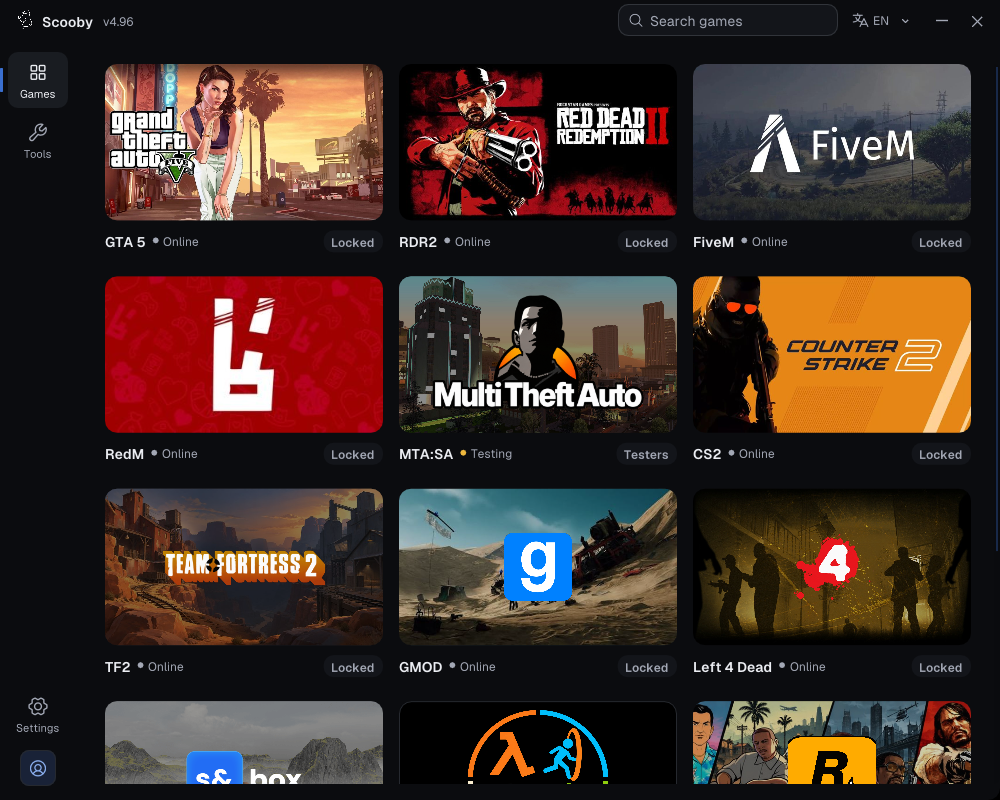
2. Choose your game
Open Games, then select RedM.
 Enlarge screenshot ↗
Check that the dashboard name matches your game before continuing.
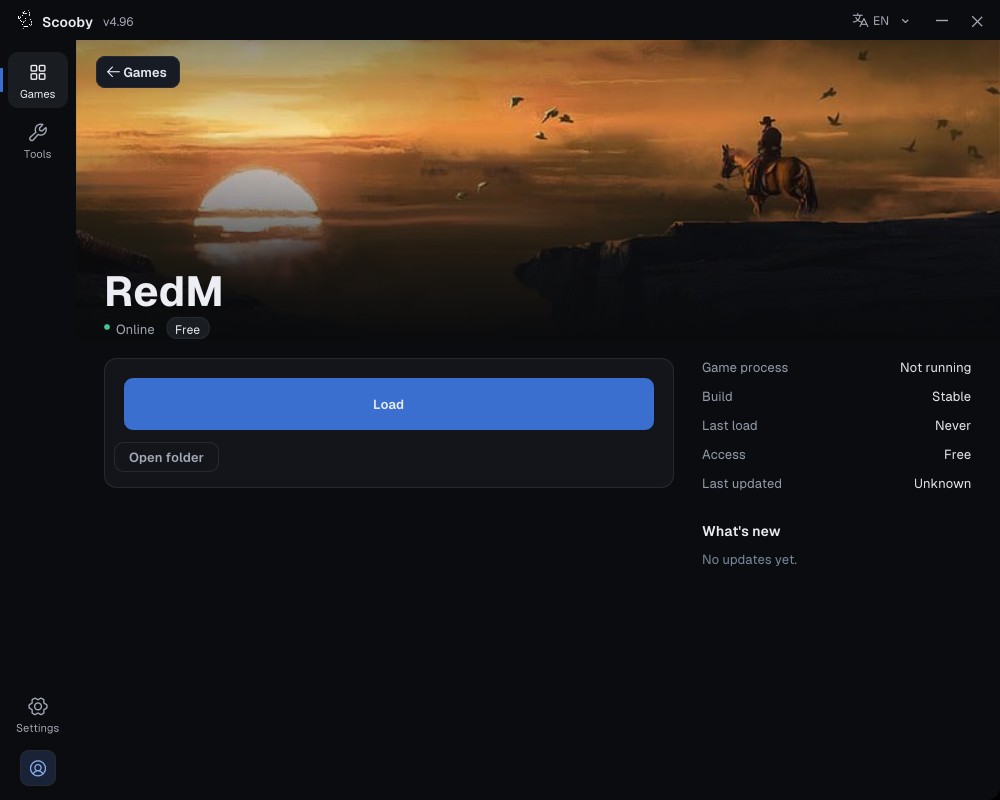
3. Check the edition, then Load
Follow the game-specific preparation steps above, check Edition if shown, and press Load once.
 Enlarge loader screenshot ↗
4. Wait for loading to finish
Keep the loader open while it prepares files and loads the module. A download percentage or “Preparing assets” message is still in progress; wait for the completion message.
5. Check completion, then return to the game
A success dialog confirms loading and offers Close loader.
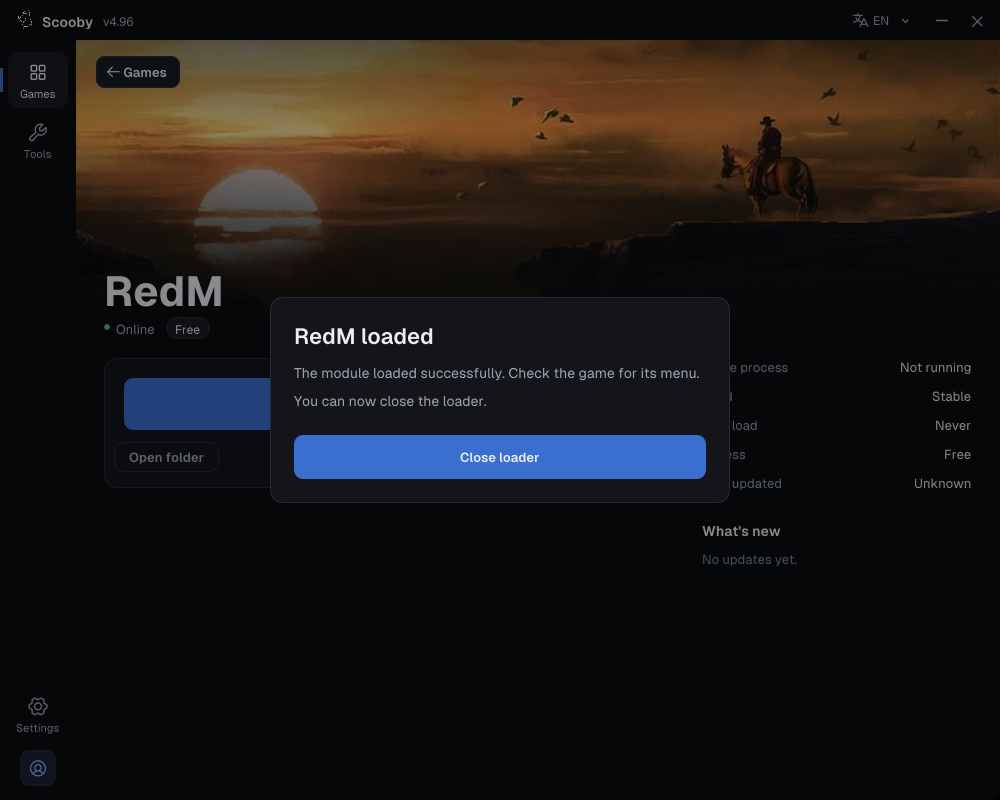 Enlarge screenshot ↗
If the menu does not open, check your configured menu key and the troubleshooting section for your game. Keep the exact error or status message.