Getting started
Set up the free TF2 version, choose your edition and open the menu.
Getting started
- Download Scooby Launcher and sign in with a valid free key or your existing paid account. The same free-key session includes both TF2 editions; no separate TF2 purchase is needed.
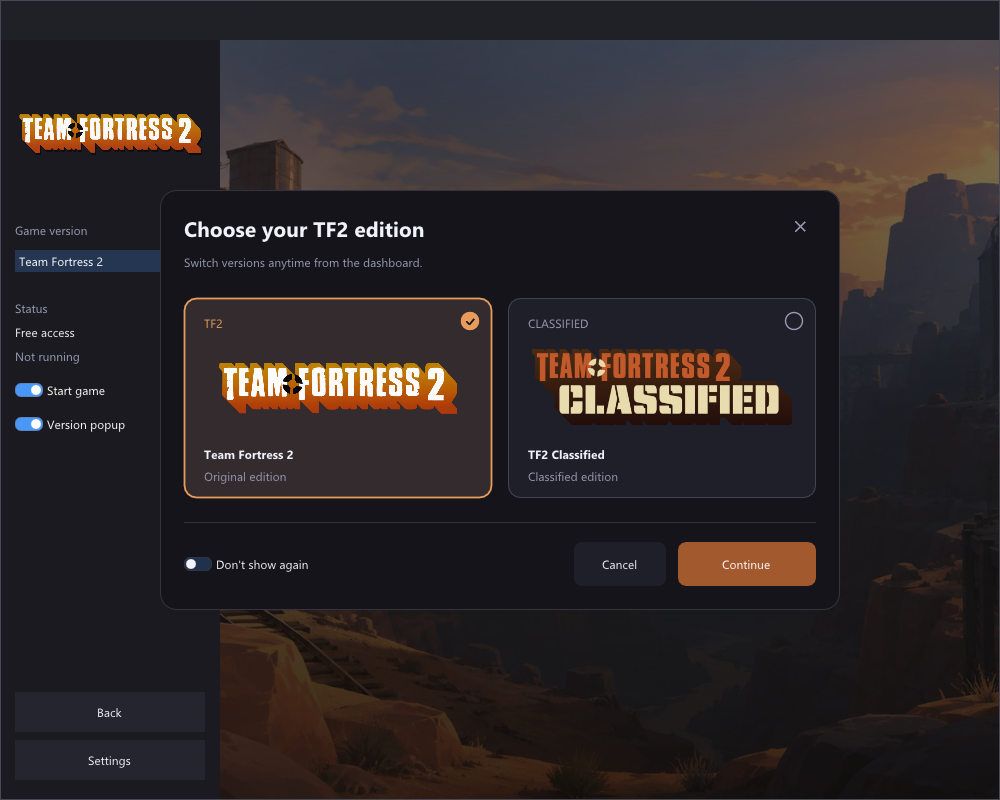
- Open TF2 from Home or Source Games. Choose Team Fortress 2 for retail, or TF2 Classified for Classified, then select Continue.
- Enable Start game and press Load. The loader starts the selected Steam game with
-insecureand waits for it to become ready. If the game is already open, it must have been started with that launch option. - Start a local practice/listen-server map. The current native features and Lua game queries require an eligible local session.
- Press Insert or F1 to open the menu. Start with a few settings and save a profile once you are happy with them.
Asset downloads and languages
The launcher downloads the selected edition automatically. After loading, fonts and menu assets download automatically. A bar at the bottom of the game shows the filename and progress. Press F5 to retry a failed download; later starts reuse verified cached files. English is included. Download other languages from Settings > Interface > Download / update languages in-game.
For a missing menu or a game that stays on “Waiting for game,” follow troubleshooting.