Plus Setup Guide
GTA 5 · Scooby Wiki · Plus
Plus Setup Guide
Scooby Plus uses a bootloader that loads its kernel driver when your PC restarts. Complete every setup step in order before selecting Load Driver At Next Boot. Take your time and do not skip the checks.
The setup in three parts
- Prepare Windows. Save your recovery key, then complete the encryption, hypervisor and VBS checks in steps 1–3.
- Change BIOS settings. Keep UEFI boot mode. Turn off Secure Boot, Fast Boot and the relevant virtualization settings. Follow step 4, then step 5 and the outlined pictures.
- Restart and load. Arm the driver, restart, then load Scooby and launch GTA V with BattlEye enabled. Step 6 has the full sequence.
Menu keys: ClickUI F1 / Insert · ListUI F2.
Jump to a step or find help
Before you begin: identify your hardware
Keep this guide open on your phone while you are in BIOS. Take photos of the settings before changing them so you can restore the original values if needed.
Press Win + R, type msinfo32, and note these fields in System Summary:
- Processor: tells you whether to look for Intel or AMD setting names.
- System Manufacturer / System Model: use these for a laptop or branded prebuilt PC.
- BaseBoard Manufacturer / BaseBoard Product: use these to identify the motherboard in a custom desktop.
- BIOS Version/Date and OS Name / Version: useful when a menu differs from a tutorial. You can also run
winverfor the Windows build.
Find the manual on the manufacturer’s support site using the exact model, and board revision if applicable. Two PCs from the same brand can have different menus. If a field is blank or generic, use the model label or purchase details rather than guessing.
1. Check the required settings
This is the required configuration for the Plus bootloader setup described here:
- Hypervisor: off.
- Secure Boot: disabled.
- Firmware Fast Boot: disabled.
- Virtualization-Based Security (VBS): not running.
- Core isolation → Memory integrity (HVCI): off.
- BIOS virtualization: off, including Intel VT-x / VT-d or AMD SVM / IOMMU where present.
- BitLocker / Device Encryption: off for this Plus setup; see the distinction between decryption and suspension below.
- BIOS Mode: UEFI.
Press Win + R, enter msinfo32, and check BIOS Mode, Secure Boot State and Virtualization-based security. If BIOS Mode says Legacy, contact support before changing boot mode: switching an existing installation to UEFI may require disk conversion or other preparation.
2. Prepare BitLocker / Device Encryption
Save your 48-digit recovery key somewhere accessible from another device before changing Secure Boot or other boot settings. Open Manage BitLocker (or Settings → Device encryption, depending on your Windows edition). For the BitLocker-off requirement above, select Turn off BitLocker / turn Device encryption off, and wait until decryption finishes.
If you need to locate the key, follow Microsoft’s recovery-key instructions. It may be saved to the Microsoft account or work/school account used to set up the PC. Keep the key private; support screenshots should not include it.
For a temporary firmware change on an encrypted PC, the supplied notes describe suspending protectors from an administrator terminal before the change:
manage-bde -protectors -disable C:After returning to Windows, resume protection:
manage-bde -protectors -enable C:Suspension leaves the drive encrypted and does not meet the BitLocker-off requirement. These commands are for the temporary suspension workflow only. See Microsoft’s BitLocker suspension guidance.
3. Turn off the hypervisor, VBS and Memory Integrity
- Open PowerShell as administrator and run:
bcdedit /set hypervisorlaunchtype off - Open Windows Security → Device security → Core isolation details and set Memory integrity to Off.
- If VBS is enabled, press Win + R, enter
regedit, and open this path (you can paste it into Registry Editor’s address bar):
SetHKEY_LOCAL_MACHINE\SYSTEM\CurrentControlSet\Control\DeviceGuardEnableVirtualizationBasedSecurityto0. If the value is missing or managed by your organization, use the VBS troubleshooting guide rather than guessing at other registry settings. - Restart your PC to apply the changes. If you are completing the VBS registry step too, you can do both Windows changes before this restart.
If VBS still runs after restarting, complete the firmware steps below and use the VBS/HVCI diagnostic to identify the remaining trigger. HVCI is a Windows security feature; it is not a standard BIOS virtualization toggle.
4. Enter UEFI firmware settings
- Open Start → Power.
- Hold Shift and select Restart. Keep holding Shift until the blue Choose an option screen appears.
- Select Troubleshoot → Advanced options → UEFI Firmware Settings → Restart.
If that option is unavailable, use your device’s setup key at power-on. Common keys include Delete / F2 on desktop motherboards, F2 on Dell, Esc / F10 on HP, and F1 / F2 on Lenovo. Check your model’s manual for the exact key. Surface devices commonly use Volume Up + Power.
You can also reach Advanced startup through Windows 11: Settings → System → Recovery → Advanced startup → Restart now, or Windows 10: Settings → Update & Security → Recovery → Advanced startup. Save your work first. If you miss the setup key, restart and try again; a wired keyboard or the laptop’s built-in keyboard may help before Windows loads.
5. Change Secure Boot, Fast Boot and virtualization
Secure Boot checks boot software against trusted signatures and can block the Plus bootloader. Find Secure Boot under Boot, Security, Authentication, BIOS Features, Advanced or System Configuration. Names vary by model and firmware version; use your model’s manual if these examples do not match.
- Set Secure Boot to Disabled. If it is greyed out, consult your model’s instructions or open a support ticket. Some models require an administrator/supervisor password or a mode change; do not clear Secure Boot keys or change to Custom mode unless your manufacturer specifically requires it.
- Set firmware Fast Boot to Disabled so it does not skip the bootloader. This is a firmware setting; Windows Fast Startup is a separate option.
- Find the CPU / virtualization options, usually under Advanced or Security. Disable the relevant virtualization settings: Intel Virtualization Technology / VT-x, VT-d, AMD SVM and IOMMU, where available. If a label is unfamiliar, open a support ticket with a screenshot so staff can confirm it.
- Confirm the system remains in UEFI boot mode.
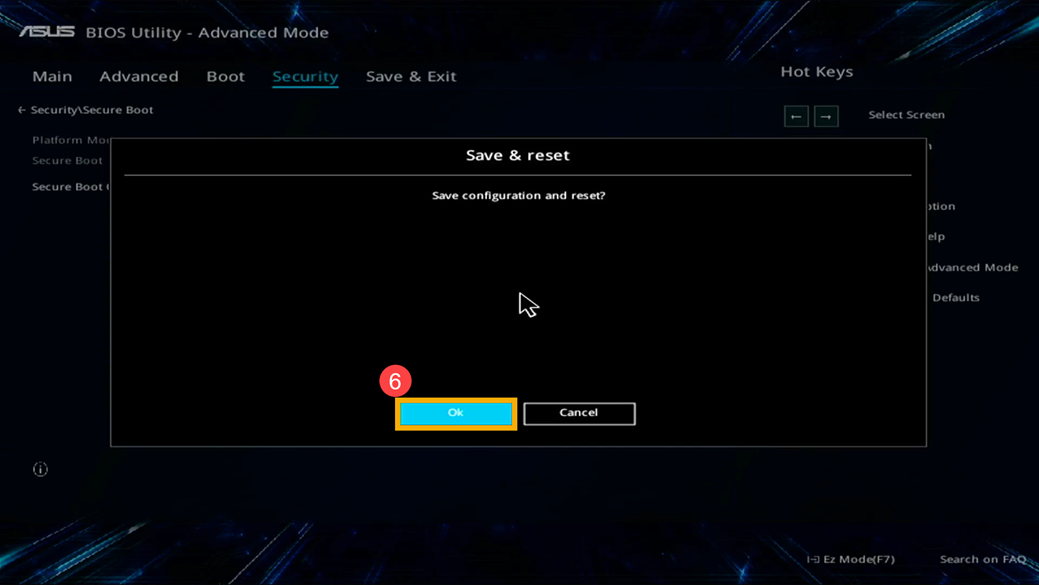
- Once all changes are complete, choose Save Changes and Exit (often F10), confirm, and let Windows restart.
BIOS pictures: find the outlined setting
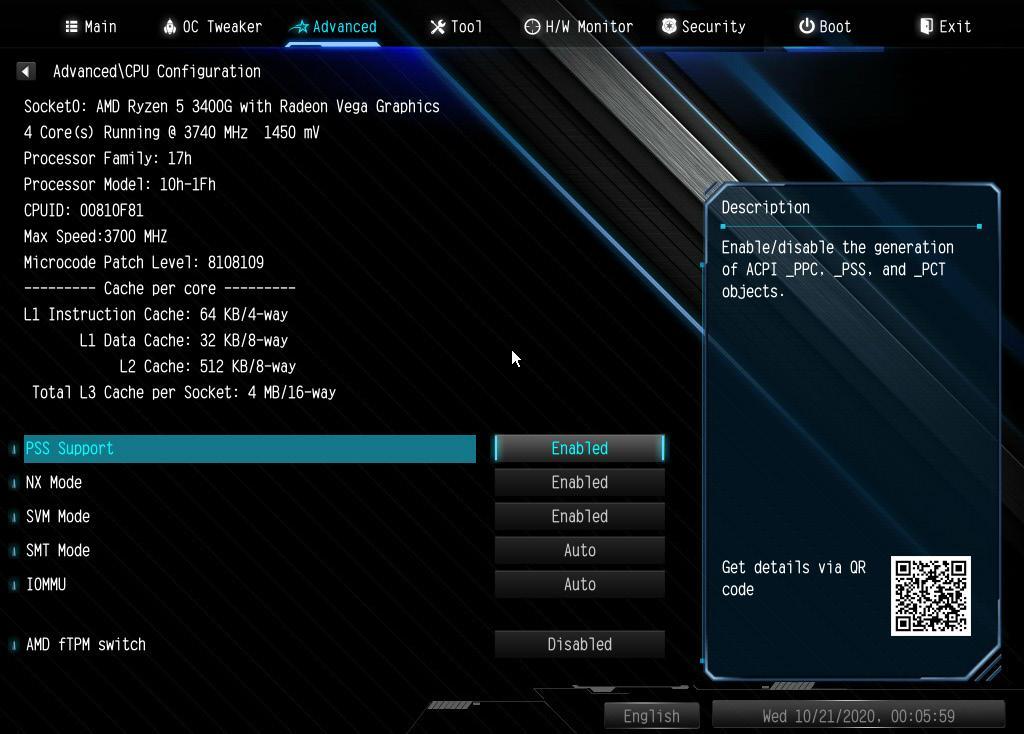
Open the example closest to your screen. The outline shows where to look; the “Set this” line tells you the required choice. The real screenshots below cover ASUS, MSI, Gigabyte/AORUS and an ASRock X300TM-ITX layout. Match the brand, model and setting name; firmware versions can look different.
Tap a picture to enlarge it, then choose Zoom in for small labels. Yellow outlines mark the control or choice. Some source pictures show Enabled or Auto: follow the Set this value above the picture. You can use arrow keys and Enter if your firmware does not support a mouse.
Secure Boot — ASUS notebook
Where to go: Security → Secure Boot → Secure Boot Control
Set this: Secure Boot Control → Disabled
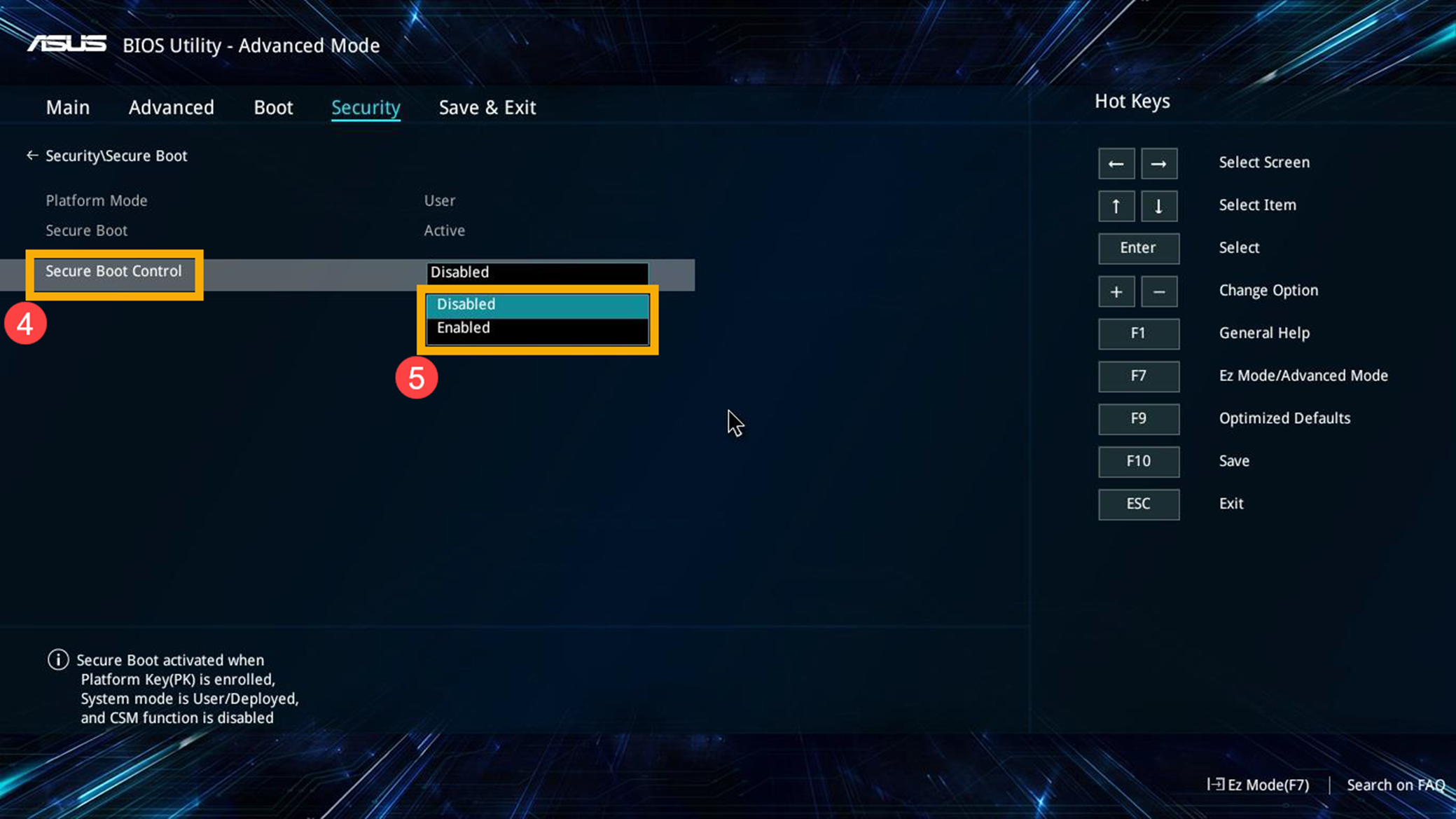
Secure Boot — ASUS desktop
Where to go: Boot → Secure Boot → OS Type
Set this: OS Type → Other OS
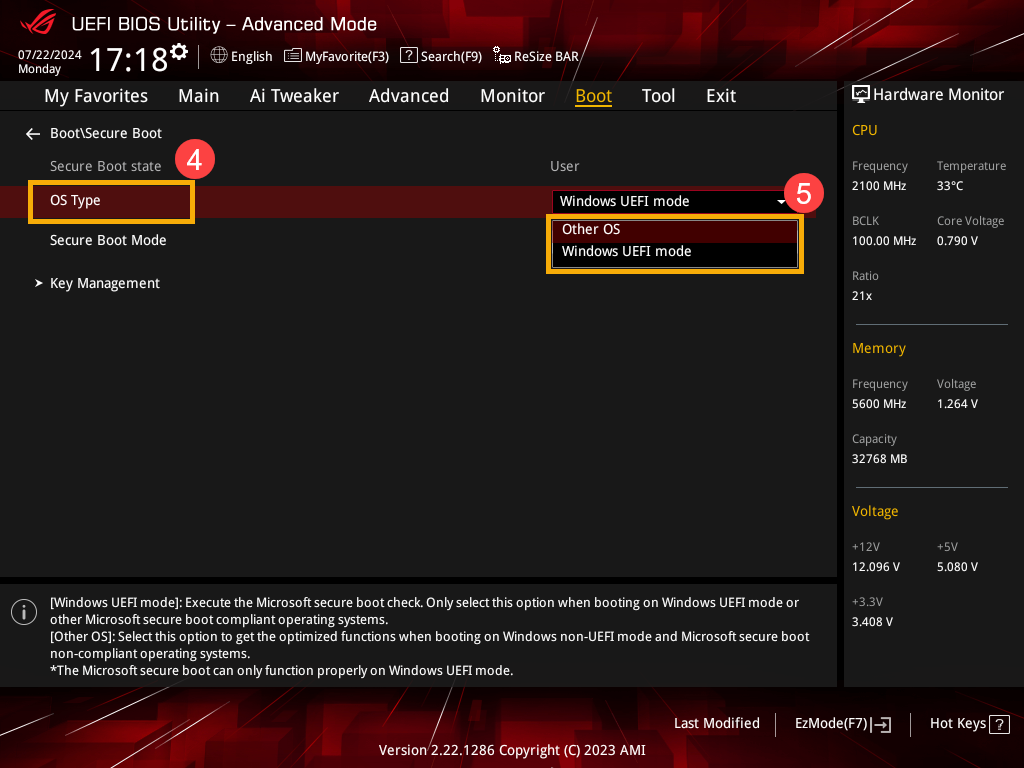
Fast Boot — ASUS UEFI
Where to go: Boot → Fast Boot
Set this: Fast Boot → Disabled
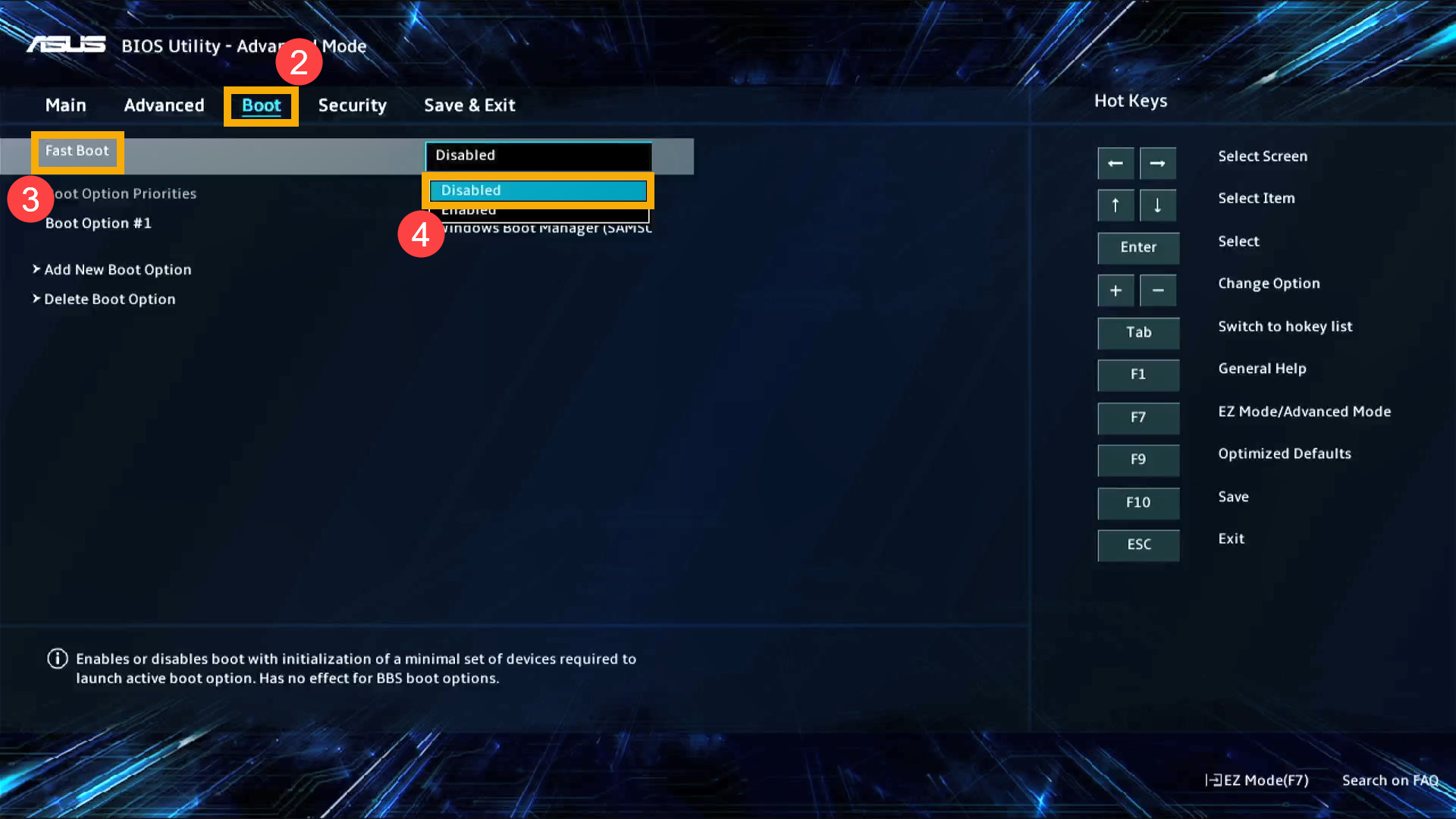
Intel virtualization — ASUS motherboard
Where to go: Advanced Mode (F7) → Advanced → CPU Configuration
Set this: Intel (VMX) Virtualization Technology → Disabled
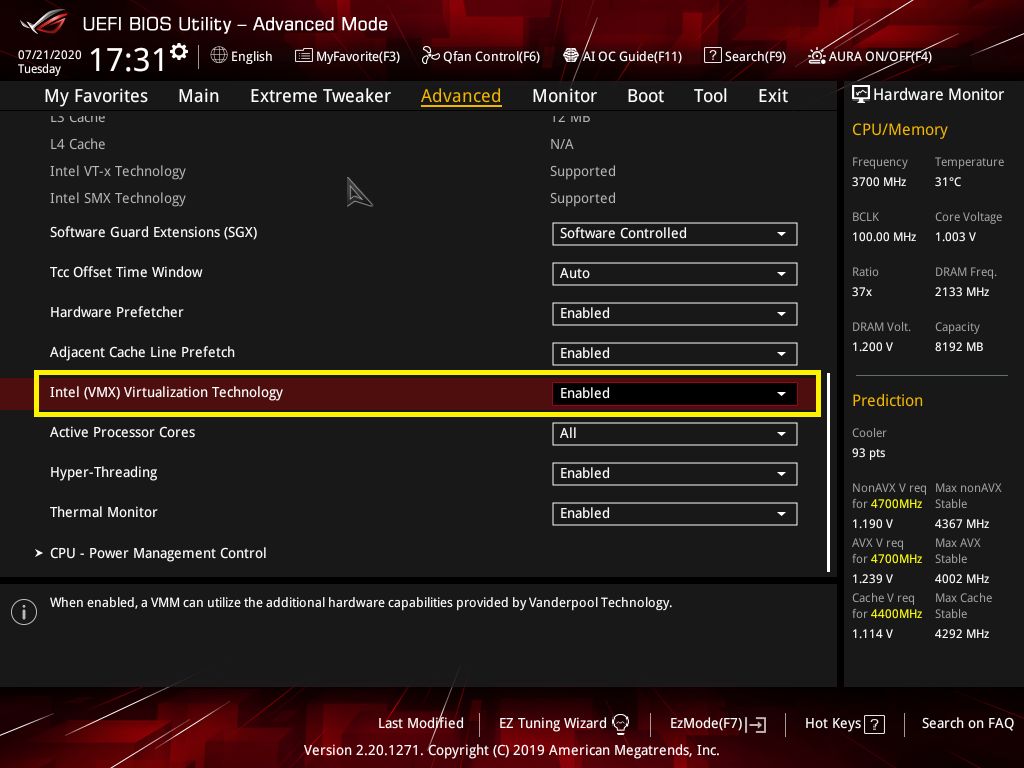
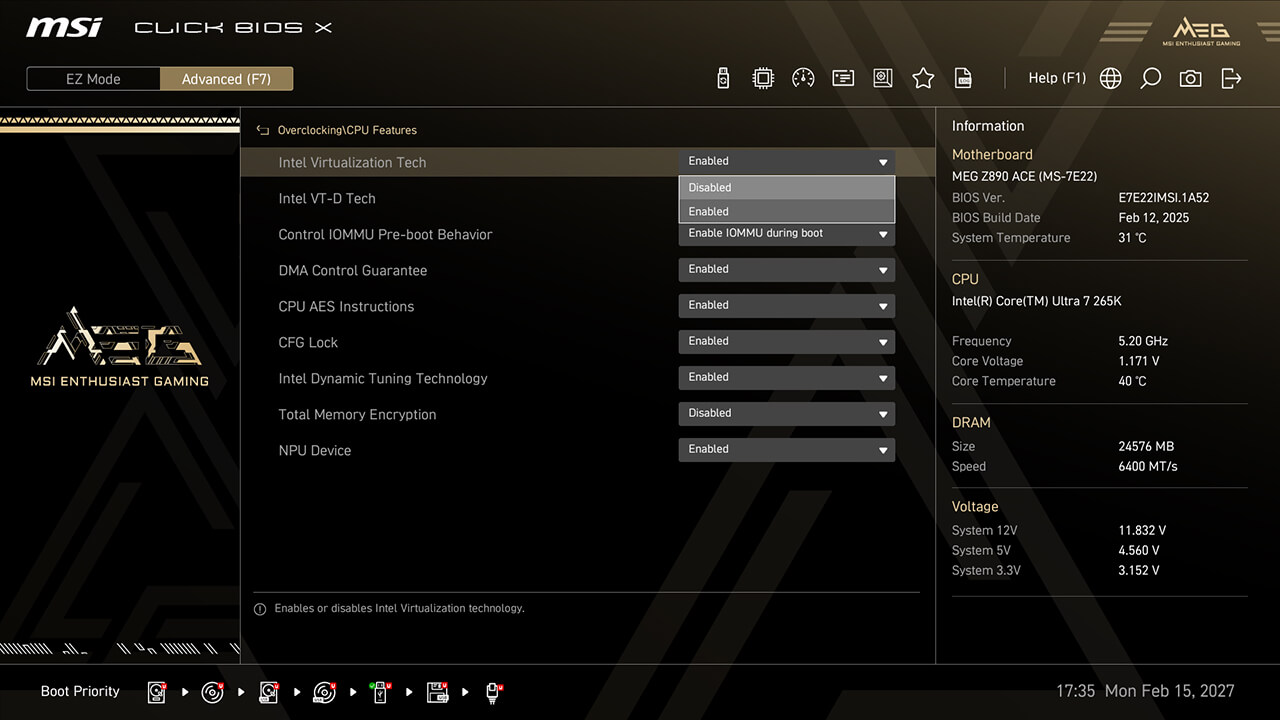
Intel CPU + VT-d — MSI Click BIOS X
Where to go: Advanced Mode (F7) → Overclocking → CPU Features
Set this: Intel Virtualization Tech + Intel VT-D Tech → Disabled
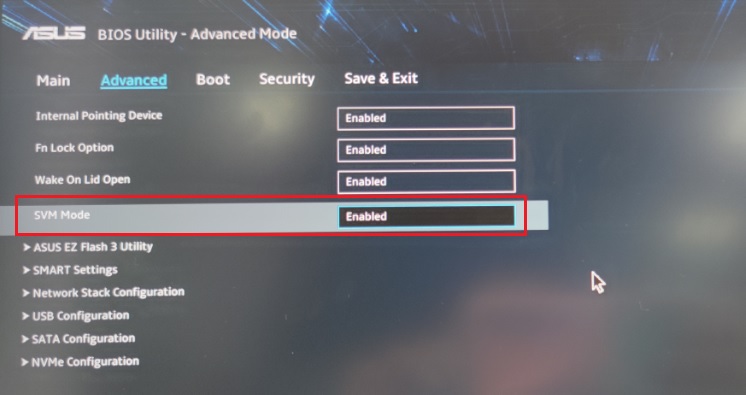
AMD virtualization — ASUS notebook
Where to go: Advanced → SVM Mode
Set this: SVM Mode → Disabled
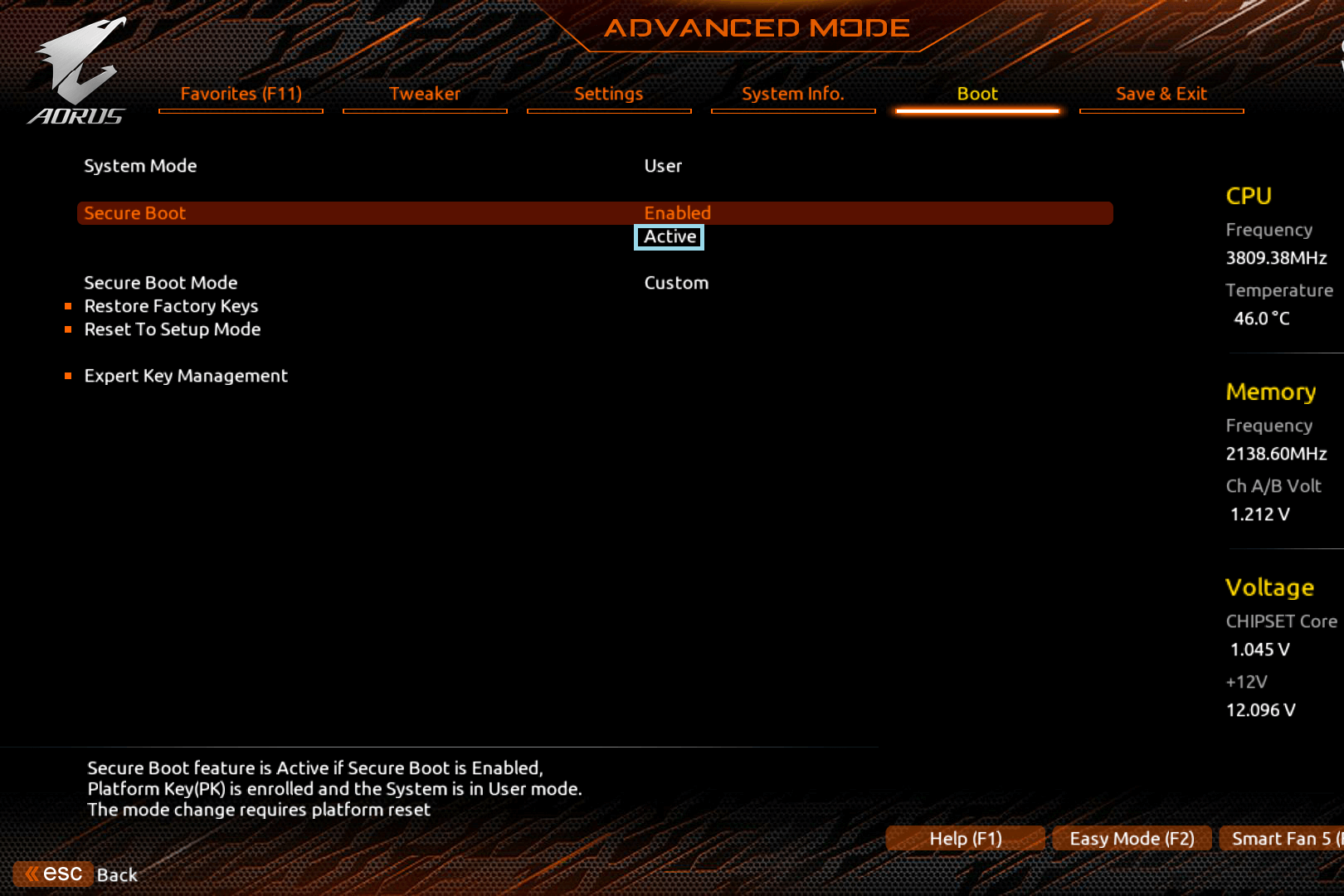
Secure Boot — Gigabyte / AORUS AM4
Set this: Boot → Secure Boot → Disabled
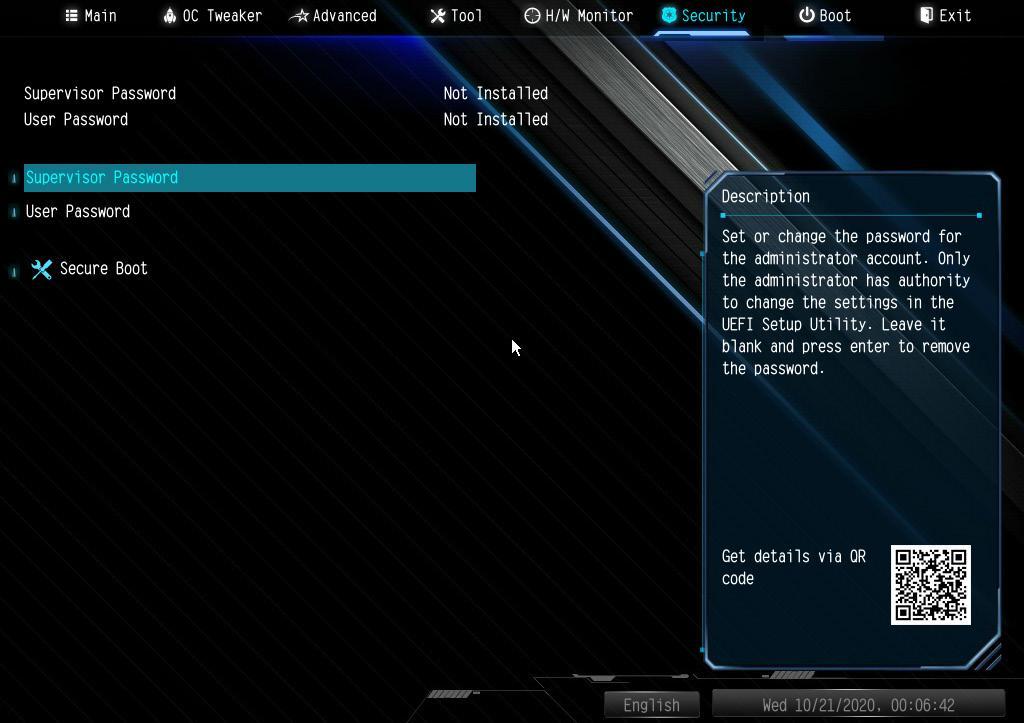
Secure Boot — ASRock X300TM-ITX
Set this: Security → Secure Boot → Disabled
AMD SVM + IOMMU — ASRock X300TM-ITX
Set this: SVM Mode → Disabled; IOMMU → Disabled
Save changes — ASUS notebook
Where to go: Save & Exit, or press F10 after completing all changes
Set this: F10 → confirm Save & reset
Names and locations for other BIOS layouts
Show setting names and manufacturer menu locations
Match the setting to your CPU and its purpose. Intel CPU virtualization and Intel I/O virtualization are separate controls; AMD SVM and IOMMU are separate too. A setting on Auto is not confirmation that it is off.
| Setting | Names to look for | For this setup |
|---|---|---|
| Intel CPU virtualization | Intel Virtualization Technology, Intel (VMX) Virtualization Technology, Intel Virtualization Tech, VT-x, VMX | Disabled |
| Intel I/O virtualization | VT-d, Intel VT-D Tech, VT for Direct I/O, Virtualization Technology for Directed I/O | Disabled |
| AMD CPU virtualization | SVM Mode, SVM, Secure Virtual Machine, AMD-V | Disabled |
| AMD I/O virtualization | IOMMU (may be separate from SVM) | Disabled where available |
| Secure Boot | Secure Boot, Secure Boot Control, Secure Boot Enable; some ASUS models use OS Type | Disabled; see ASUS note below |
| Firmware fast boot | Fast Boot; some boards offer a Fast Boot mode called Ultra Fast | Disabled, rather than Fast or Ultra Fast |
Examples: ASUS Intel VMX, ASUS AMD SVM, Dell’s separate VT / Direct I/O controls, ASRock SVM / IOMMU example (PDF), and ASRock Fast Boot modes.
Where to look for virtualization controls
- ASUS Intel motherboards: Advanced Mode → Advanced → CPU Configuration → Intel (VMX) Virtualization Technology. ASUS documents F7 for switching to Advanced Mode on applicable boards.
- MSI Click BIOS: Advanced Mode → Overclocking → CPU Features → Intel Virtualization Tech / Intel VT-D Tech. MSI identifies the AMD equivalent as SVM Mode. Follow your model’s manual if the layout differs. MSI’s BIOS guide.
- Dell: look for a Virtualization or Virtualization Support page; CPU virtualization and Direct I/O may have separate switches.
- Lenovo: some ThinkPad models place these under Security → Virtualization. Lenovo’s virtualization guide.
- Other models: check Advanced, Security, Configuration or CPU Configuration. HP’s firmware-navigation guidance describes these common locations.
The manufacturer pages explain how to find or enable virtualization. Use them to identify the control; the Plus setup here calls for it to be Disabled.
On models covered by ASUS’s Secure Boot guide, Boot → Secure Boot → OS Type set to Other OS deactivates Secure Boot. This is not an instruction to switch the system to Legacy/CSM. Keep UEFI boot mode and verify Secure Boot State: Off in Windows after saving. A greyed-out state display may be read-only; look for the actual control.
Common Secure Boot menu locations
- ASUS: Advanced Mode (F7) → Boot → Secure Boot.
- MSI: Settings → Advanced → Windows OS Configuration → Secure Boot.
- Gigabyte / Aorus: Boot → Secure Boot, or BIOS → Secure Boot.
- ASRock: Security → Secure Boot.
- Dell: Boot / Boot Sequence → Secure Boot.
- HP: Advanced → Secure Boot Configuration.
- Lenovo: Security → Secure Boot.
- Acer: Boot → Secure Boot.
- Surface / Framework: Security → Secure Boot.
Hyper-Threading / SMT is not VT-x / SVM. TPM, Intel PTT and AMD fTPM are not virtualization switches. This setup does not call for clearing the TPM, deleting Secure Boot keys, changing storage settings such as AHCI / RAID / VMD, or loading BIOS defaults.
Use Restart when applying the setup
Firmware Fast Boot and Windows Fast Startup are different. Windows Fast Startup can preserve the kernel session after Shut down; Start → Power → Restart performs a full boot cycle. Use Restart after arming the driver or changing the Windows settings, rather than Shut down followed by power-on. See Microsoft’s explanation of Restart and Fast Startup.
6. Verify and load Scooby Plus
- Back in Windows, open
msinfo32. Confirm BIOS Mode: UEFI, Secure Boot State: Off, and VBS is not running. Confirm Memory Integrity is off and BitLocker decryption has completed. - Open the Scooby loader and select GTA 5.
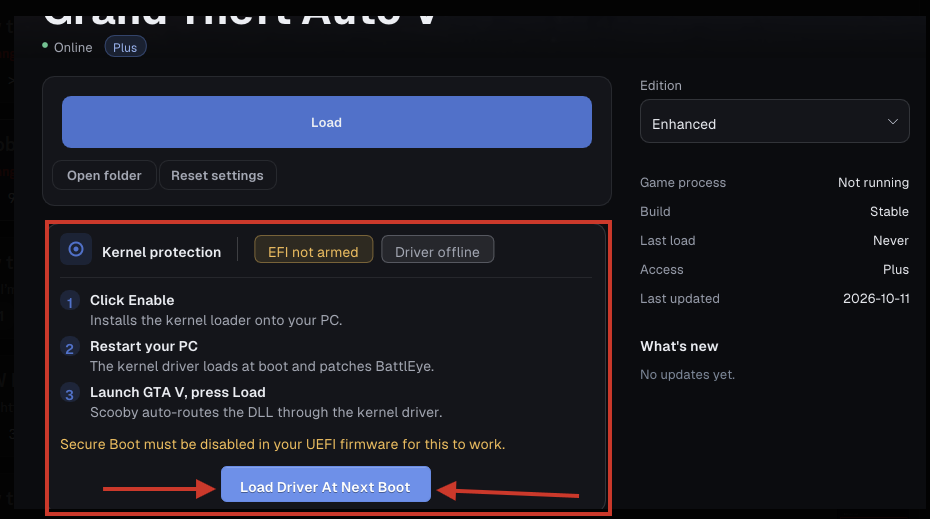
- In Kernel protection, select Load Driver At Next Boot, then restart your PC.
- The supplied setup describes a Scooby bootloader / logo appearing during startup. A missing logo is a reason to check the driver status and setup, rather than proof of one specific failure.
- Sign back into Windows and open the Scooby loader.
- Press Load, then launch GTA V with BattlEye enabled.
- Open your menu interface: ClickUI: F1 / Insert. ListUI: F2.
Final checks after restarting
- System Information:
msinfo32should show BIOS Mode: UEFI, Secure Boot State: Off, and VBS not running. Unsupported is not the same result as Off; check the boot mode and ask support if that is what you see. - CPU virtualization: open Task Manager → Performance → CPU and look for Virtualization: Disabled. This checks CPU virtualization; it does not separately confirm VT-d / IOMMU or Secure Boot. Confirm those in firmware.
- Memory Integrity: recheck Windows Security → Device security → Core isolation details after the restart.
- VBS / HVCI: run check_vbs.bat as administrator. A successful WMI result should report
VBS running: 0andHVCI running: 0. If the source is REGISTRY or settings return, use the VBS troubleshooting guide. - Encryption: an administrator terminal can run
manage-bde -status C:to inspect conversion status and encryption percentage. For a fully decrypted Windows drive, look for Fully Decrypted and 0.0%; Protection Off alone can mean suspension. ReplaceC:if Windows uses another drive letter. Microsoft’s status-command reference.
Windows logo, boot hang or blue screen?
Check the required settings and loader driver status. A hang or BSOD can also indicate a compatibility issue; do not assume every failure means the setup was done incorrectly. Open a support ticket with the exact error or stop code, Windows version, motherboard model and settings you changed. If Windows cannot boot, restore the previous firmware settings and use your recovery key if requested.
For the red “Hypervisor / VBS is running” banner, continue to the diagnostic and troubleshooting guide.
Missing settings or a different BIOS screen?
Find your loader message
Use the exact message or status shown by your current loader to choose the next step:
- EFI not armed
- Complete the requirements and final checks, then follow Load Driver At Next Boot and restart.
- Driver offline after restarting
- Recheck Secure Boot, firmware Fast Boot and virtualization, then capture the Kernel protection panel for support. The boot logo alone does not confirm the driver is available.
- Hypervisor / VBS is running
- Use the VBS/HVCI diagnostic guide. Include the full output when asking for help.
- The game opens, but the menu does not open
- Confirm the loader completed loading and click back into the game. Use F1 / Insert for ClickUI or F2 for ListUI. On keyboards that use F1 or F2 for media functions, check the keyboard’s Fn / function-key mode.
- The loader itself will not open or shows a runtime error
- Start with the Visual C++ runtime downloads and launcher troubleshooting. Record the exact error rather than changing more BIOS settings.
I can only see an EZ / simplified screen
Look for Advanced Mode or an on-screen mode-switch hint. Use the key shown by your firmware; F7 is common on the ASUS boards described above, but it is not universal. If the BIOS offers search, try the exact names in the setting-name reference.
My AMD PC has no VT-x, or my Intel PC has no SVM
That is expected: these labels belong to different CPU families. Use the Intel or AMD rows that match your processor. Not every device exposes a separate I/O virtualization switch, and a missing switch does not prove the feature is off.
A setting is missing, locked or greyed out
First confirm the exact PC / motherboard model and BIOS version. Check its manual and any dependency described there. Laptops, prebuilts and managed PCs can expose different controls from retail motherboards. Ask the manufacturer or support about a missing control rather than using an unrelated model’s instructions, unofficial BIOS unlocks or a guessed supervisor password. Do not flash a BIOS just because a tutorial’s menu looks different.
The setting was changed, but Windows still reports the old value
Re-enter firmware and confirm the change was saved. Use Save Changes and Exit, read the confirmation list, then restart and check Windows again. If firmware retains the change but VBS returns, check the Windows features and policy troubleshooting. If this begins after a BIOS update or reset, recheck the required settings before arming the driver again.
I want to restore my usual security settings later
Use the loader’s supported bootloader / driver removal procedure, or ask support for the current instructions, before restoring Secure Boot and the other recorded settings. Restart and verify Windows boots normally. Restore your usual encryption and security protections when you finish using this setup.
What to include in a support ticket
Send the exact PC or motherboard model, Intel/AMD processor, BIOS version, Windows version/build, a photo of the relevant BIOS screen, the loader’s Kernel protection status and any error or BSOD stop code. Include the diagnostic output if VBS is involved, and say which step you reached. Crop out recovery keys, passwords, account details and serial numbers before sharing.
Copy a support-ticket template
Fill in what you can check. Write “unknown” for anything you cannot confirm, and attach the relevant screenshots or diagnostic output separately.
PC / motherboard model:
Processor (Intel / AMD + model):
BIOS version:
Windows version / build:
GTA V edition (Legacy / Enhanced):
Scooby loader version, if shown:
Last setup step completed:
Exact loader message / BSOD stop code:
Kernel protection status after restart:
BIOS Mode / Secure Boot State (msinfo32):
VBS / HVCI verdict and source (WMI / REGISTRY):
Settings changed and checks already tried:
Did this work before? What changed since then?