Premium and Free Setup
Sign in with Premium or a free key, choose your GTA 5 edition, and follow the loading steps.
GTA 5 Premium and Free Setup
Before you start
- Install GTA 5 Legacy or Enhanced and confirm which edition you will launch.
- Download the current Scooby loader from the Scooby portal. Sign in to the website with your normal account if asked. A free key only works inside the loader.
- Install the required Visual C++ runtimes if needed, then restart Windows. Use the Microsoft x64 package and Microsoft x86 package.
Pictures below show the real native loader with example access and status values. Click a picture to enlarge it; use Zoom in for small labels.
1. Sign in — Premium or Free
Choose the login method that matches your access.
Premium — use the account you created
- Choose Premium in the loader.
- Enter your Scooby account’s username and password.
- Choose Sign in. Your GTA 5 Premium license must be activated on that same account.
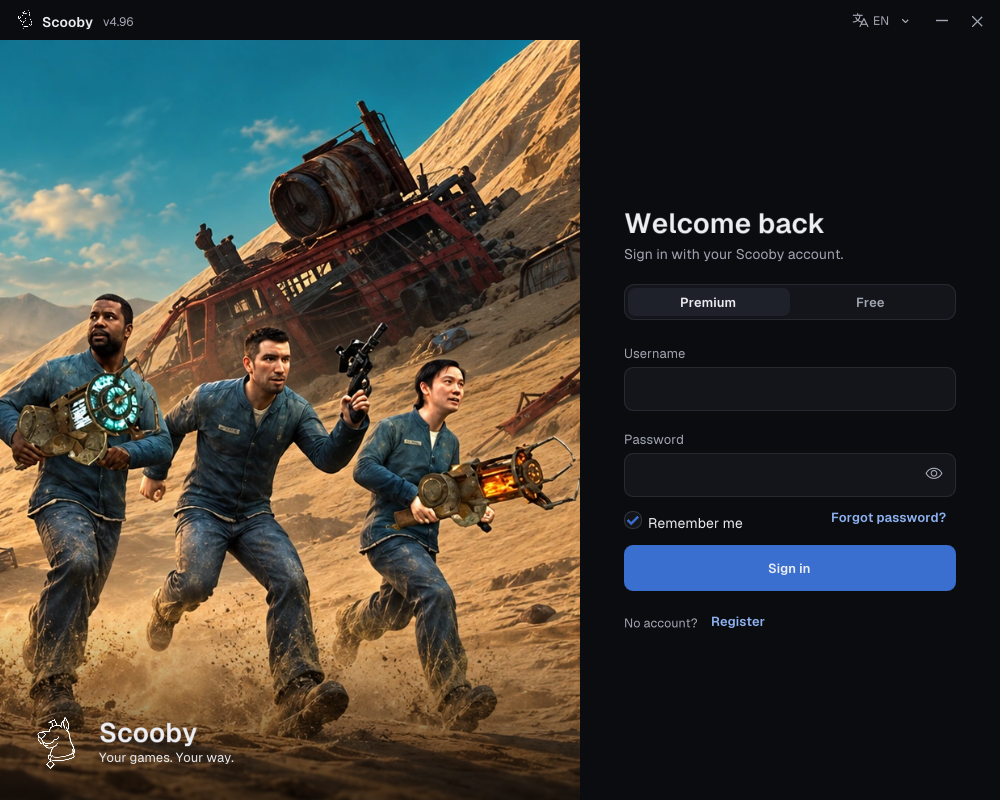 Enlarge screenshot ↗
Purchased a license key? Redeem it first
- Sign in to the portal with the account you will use in the loader.
- Open Dashboard → Redeem license key.
- Paste your purchased license key, choose Redeem key, and wait for the success message. Check that GTA 5 Premium appears on your account.
- Return to the loader and sign in using Premium with that account’s username and password. Sign out and back in if access needs refreshing.
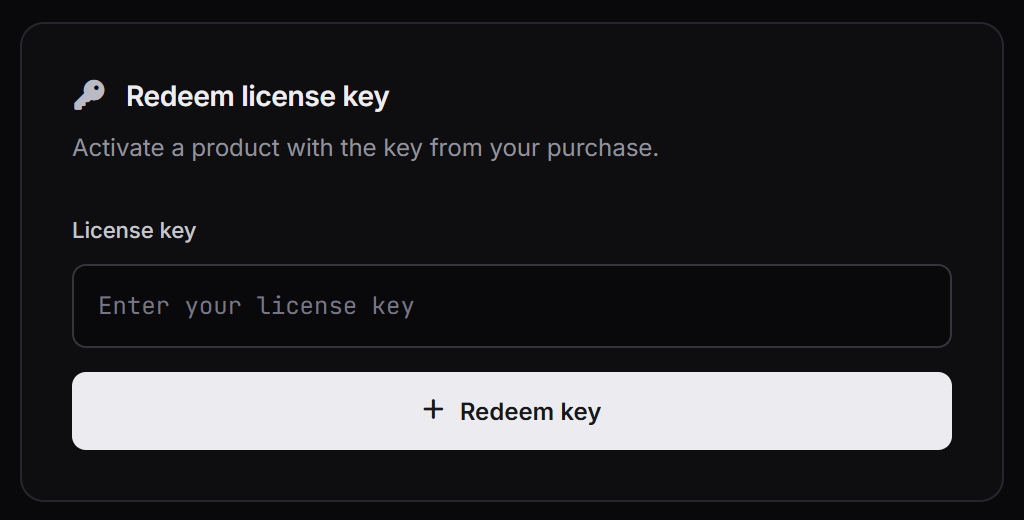 Enlarge screenshot ↗
A purchased license key activates your account; it is not your loader password. More account and activation help →
Free — paste a current free key
- Get a free key, complete the access steps and choose Copy Scooby key.
- In the loader, choose Free.
- Paste the copied key into Free key and choose Sign in.
One free key supports all Scooby Free versions. Free keys reset every 24 hours; get a new key every 24 hours and repeat the Free login. Free keys do not sign in to the portal/dashboard and cannot be redeemed as Premium licenses.
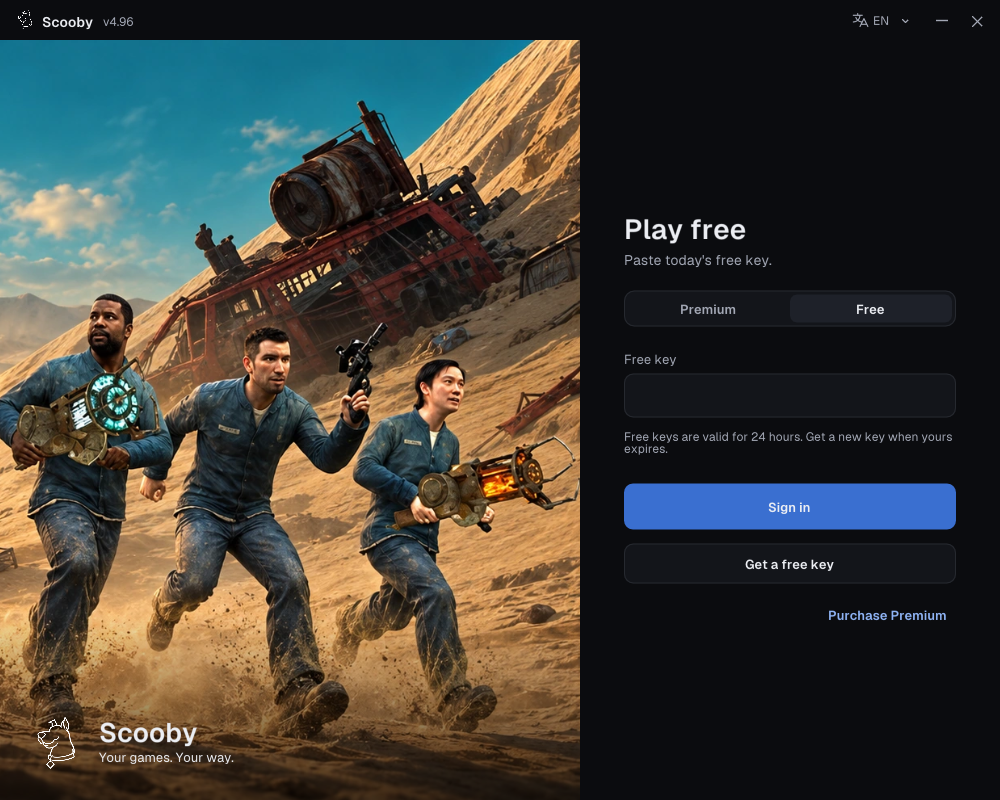 Enlarge screenshot ↗
2. Choose GTA 5 and match your edition
- Open Games in the loader and select GTA 5.
- On the GTA 5 dashboard, set Edition to Legacy or Enhanced, matching the game you will start.
- Read your access and availability status. Resolve a Locked, Paused or unsupported-build message before loading.
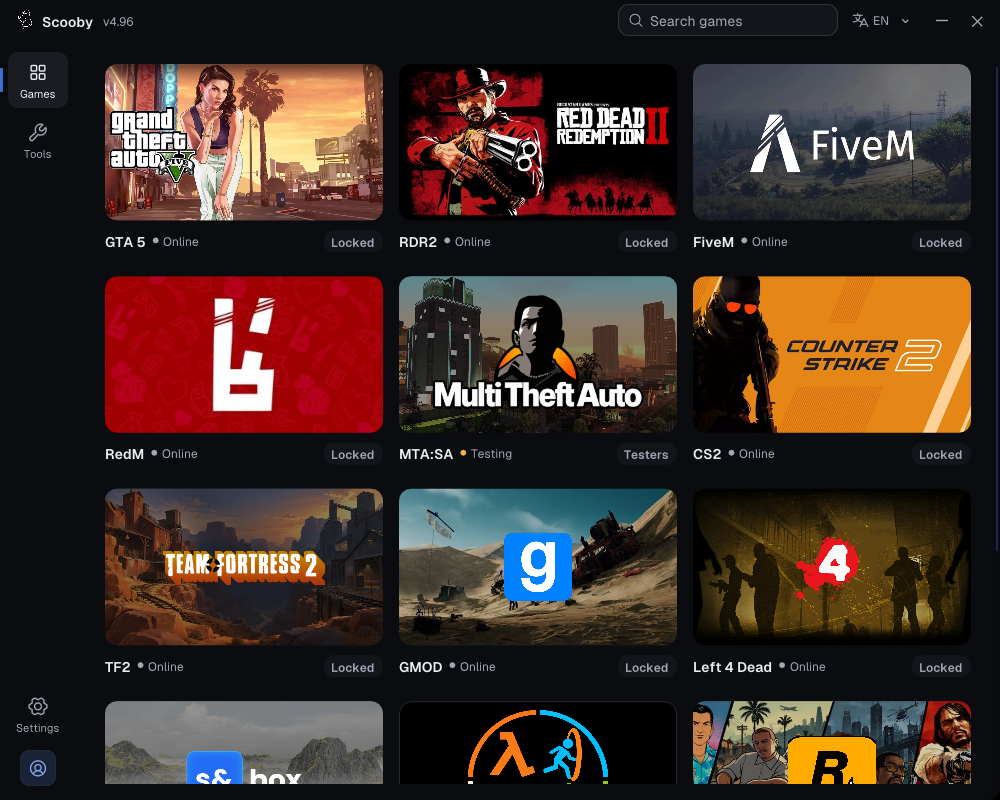 Enlarge screenshot ↗
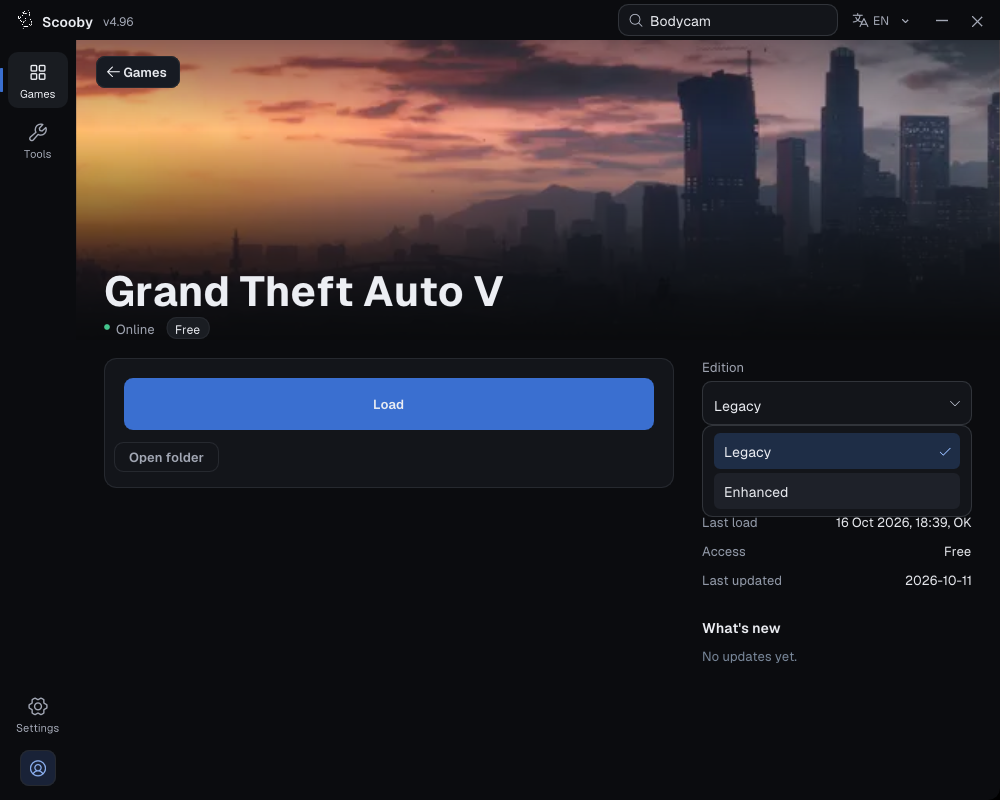 Enlarge loader screenshot ↗
3. Choose BattlEye Disabled
For the Premium and Free path on this page, choose BattlEye Disabled in the loader’s mode picker and select Continue. Launch GTA 5 with BattlEye disabled as required for that mode. Use the loader’s built-in BattlEye guide or the Legacy & Enhanced setup instructions for your launcher.
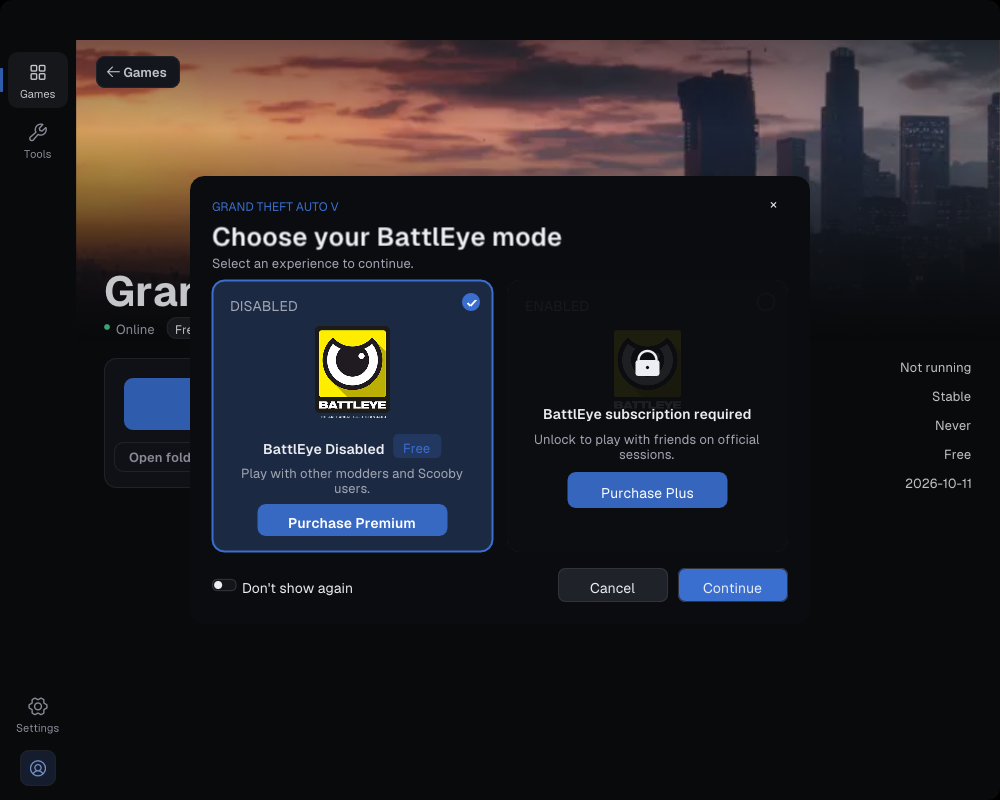 Enlarge screenshot ↗
If you want the BattlEye Enabled option, use your eligible Plus access and complete the Plus Setup Guide before loading.
4. Load Scooby and open the menu
- Start the matching GTA 5 Legacy or Enhanced edition and wait at its main menu / landing page.
- Return to the Scooby GTA 5 dashboard and choose Load once.
- Keep the loader open while it prepares files and loads the module. Wait for the completion message; a download percentage alone is not completion.
- Return to GTA 5 and enter Story Mode.
- Open Scooby using the key for your interface below. If the menu does not appear, keep the exact loader message and follow the troubleshooting links.
Show the loading-progress example
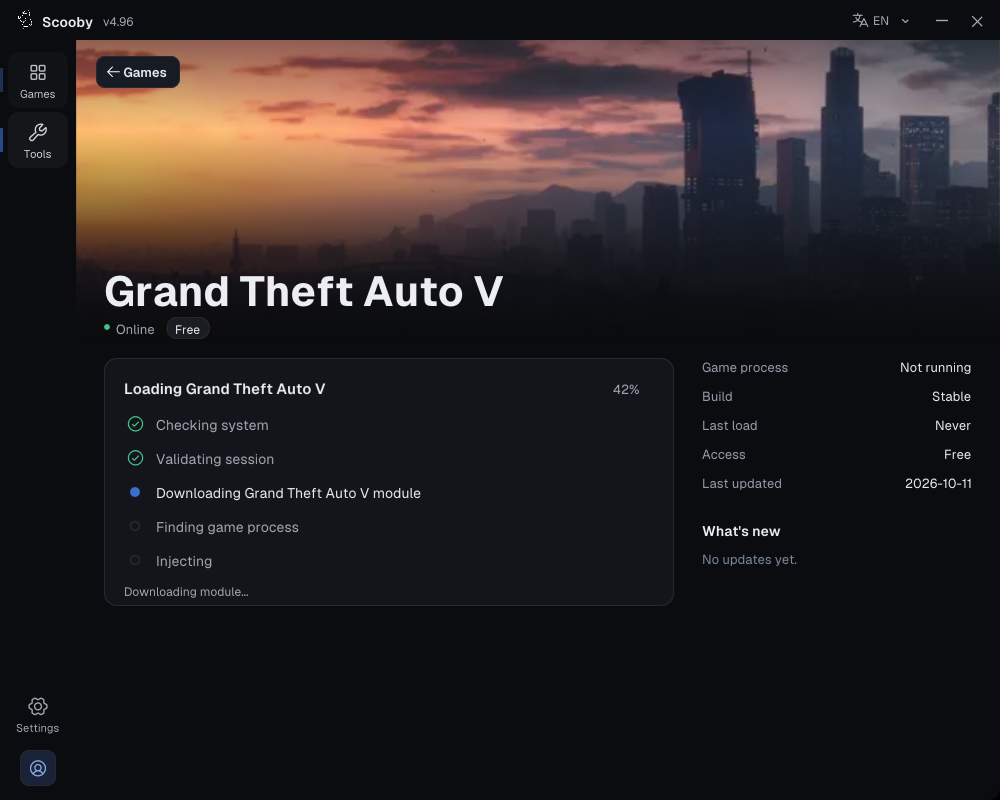 Enlarge screenshot ↗
5. Follow the online rules for your access
Free
Use solo / invite-only sessions with other Scooby users, with BattlEye disabled. Free does not support normal public lobbies or sessions with non-modders. Read the Free online-access rules before joining a session.
Premium
Premium uses BattlEye disabled for this loading path. Public-session hosting and playing with friends require you to remain the session host. Follow the Premium public-session hosting guide for the session requirements.
Plus / Premium Plus
The BattlEye-enabled path uses separate access and setup requirements. Continue with the Plus Setup Guide.
If something goes wrong
- Website or loader cannot connect: use connection help. A backend or hosting outage may require waiting for service to recover.
- Free key expired or rejected: get a current key and check that you chose Free.
- Premium still locked: check that you redeemed the license on the same account used for Premium login.
- File blocked or removed: follow antivirus & download help.
- Crash, edition mismatch or no menu: use GTA 5 troubleshooting and keep the exact error text.